

OfferHunt in your AI app
Take your matches into the AI app you already use
 ChatGPT
 Claude
 Muse
 Grok& more
Your AI reads the same resume, preferences, and matches as your OfferHunt account. Ask it for a shortlist in chat, have it check for new matches every day, or let it fill in applications on employer sites, submitting only after you approve
Setup guide
Your next job search starts with a chat
Pick your AI once. Each step below shows the instructions for that app
Choose your AI
Get started
Step 1: Connect OfferHunt to your AI
Your OfferHunt account keeps your resume, preferences, and saved jobs together
Install the OfferHunt plugin
- 1.Click the button below to open the OfferHunt plugin.
- 2.Click Install plugin and sign in to OfferHunt.
Plugins depend on your ChatGPT plan and workspace. In a work or school workspace, an admin may need to allow OfferHunt.
Add the OfferHunt connector
- 1.Click the button below to open the OfferHunt connector.
- 2.Click Connect and sign in to OfferHunt.
On a Team or Enterprise plan, an owner adds OfferHunt for your organization first. You can request it from its page.
Copy, paste, connect
- 1.Paste the setup prompt into a new Muse chat.
- 2.Share your resume file and tell Muse what jobs you want.
Paste this into Muse
Help me connect OfferHunt at https://www.offerhunt.ai/mcp using OAuth. Read https://www.offerhunt.ai/developers#connection-recovery before setting up the connection so it can renew access automatically for later runs. If you can't connect it here, say so and point me to https://www.offerhunt.ai/developers for setup. Don't invent steps or ask for a token in chat. Once connected, call get_profile to check it works. This initial check does not verify next-day scheduled access.
Connect OfferHunt to Grok
- 1.Open Grok Connectors and choose New Connector → Custom.
- 2.Name it OfferHunt, enter the MCP server URL below, and choose Add Connector. Complete the OfferHunt sign-in and consent in the popup window.
- 3.Return to a chat and ask Grok to use OfferHunt to check your profile, then find matching jobs.
OfferHunt MCP server URL
https://www.offerhunt.ai/mcp
Name: OfferHunt · Authentication: OAuth
Step 2: Find jobs that fit
Turn your resume and preferences into a shortlist worth your time
Ask ChatGPT for a shortlist
Recommend up to 10 jobs to me using OfferHunt.
Ask Claude for a shortlist
Recommend up to 10 jobs to me using OfferHunt.
Ask Muse for a shortlist
Recommend up to 10 jobs to me using OfferHunt.
Ask Grok for a shortlist
Recommend up to 10 jobs to me using OfferHunt.
When you're ready
Step 3: Get matches every dayOptional
Have your AI check for new matches at a time you choose
Set up daily matchesHide
Set it up in ChatGPT
Same-day scheduled OfferHunt run verifiedOpen Scheduled, type @ in the Schedule a task box to select OfferHunt, then paste the daily instructions with when to run, for example every day at 9 AM Pacific. ChatGPT may offer a flexible morning time instead of an exact one. Check the saved task's next run time.
ChatGPT Scheduled guide ↗Schedule daily matches
View instructions
Each run, find up to 10 matching jobs using OfferHunt and my latest saved preferences, respecting my paused search status. Include fit reasons, concerns, and direct employer apply links. Do not submit applications or change my profile. Let the app try its supported automatic connection renewal. If I still need to reconnect, say "I couldn't check for jobs because your OfferHunt connection needs attention. Please reconnect OfferHunt in your AI app." Use plain language, without technical error codes or credential details, and never ask me to paste credentials into chat. If OfferHunt is unavailable, report that the job check could not finish and stop. Only claim changes to my records or schedule when confirmed; after reconnection, verify access before confirming recovery. Notify me only when there are meaningful changes or something needs my attention; do not repeat an unchanged connection warning every day.
Set it up in Claude
Scheduling requires a paid planOpen Scheduled → New task → Set up manually, add the daily instructions, choose Daily, and set your time. OfferHunt is listed under the task's connectors in Advanced settings. Check the task's next run time.
Claude Scheduled guide ↗Schedule daily matches
View instructions
Each run, find up to 10 matching jobs using OfferHunt and my latest saved preferences, respecting my paused search status. Include fit reasons, concerns, and direct employer apply links. Do not submit applications or change my profile. Let the app try its supported automatic connection renewal. If I still need to reconnect, say "I couldn't check for jobs because your OfferHunt connection needs attention. Please reconnect OfferHunt in your AI app." Use plain language, without technical error codes or credential details, and never ask me to paste credentials into chat. If OfferHunt is unavailable, report that the job check could not finish and stop. Only claim changes to my records or schedule when confirmed; after reconnection, verify access before confirming recovery. Notify me only when there are meaningful changes or something needs my attention; do not repeat an unchanged connection warning every day.
Set it up in Muse
Timed OfferHunt run unverifiedPaste the daily prompt into Muse. It asks for your preferred time and time zone before creating the schedule. Check its confirmation and next run time.
How Muse handles goals and tasks ↗Schedule daily matches
View instructions
Set up a daily OfferHunt job search for me. Ask me what time and time zone to use before creating the schedule. Each run, find up to 10 matching jobs using OfferHunt and my latest saved preferences, respecting my paused search status. Include fit reasons, concerns, and direct employer apply links. Do not submit applications or change my profile. Let the app try its supported automatic connection renewal. If I still need to reconnect, say "I couldn't check for jobs because your OfferHunt connection needs attention. Please reconnect OfferHunt in your AI app." Use plain language, without technical error codes or credential details, and never ask me to paste credentials into chat. If OfferHunt is unavailable, report that the job check could not finish and stop. Only claim changes to my records or schedule when confirmed; after reconnection, verify access before confirming recovery. Notify me only when there are meaningful changes or something needs my attention; do not repeat an unchanged connection warning every day. Confirm the schedule and next run time only after it has been created successfully. If scheduled OfferHunt access is not supported here, tell me instead of claiming it is set up.
Set it up in Grok
Scheduled OfferHunt read verifiedOpen Automations → New Automation, select OfferHunt under Connectors, add the daily instructions, and choose a Daily trigger and time. Check its next-run time.
Open Grok Automations ↗See the setup screen
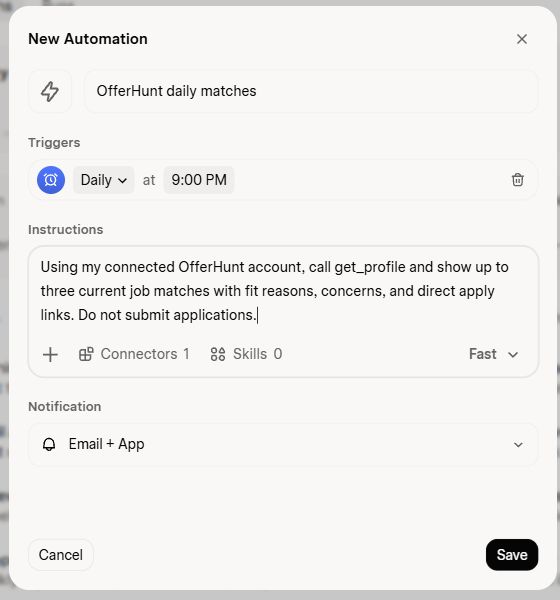
Example only. Choose your own time; no task was saved for this screenshot.
Schedule daily matches
View instructions
Each run, find up to 10 matching jobs using OfferHunt and my latest saved preferences, respecting my paused search status. Include fit reasons, concerns, and direct employer apply links. Do not submit applications or change my profile. Let the app try its supported automatic connection renewal. If I still need to reconnect, say "I couldn't check for jobs because your OfferHunt connection needs attention. Please reconnect OfferHunt in your AI app." Use plain language, without technical error codes or credential details, and never ask me to paste credentials into chat. If OfferHunt is unavailable, report that the job check could not finish and stop. Only claim changes to my records or schedule when confirmed; after reconnection, verify access before confirming recovery. Notify me only when there are meaningful changes or something needs my attention; do not repeat an unchanged connection warning every day.
Daily checks find matches; they don't apply for you. When a run turns up roles you like, use step 4 to apply.
Step 4: Let your AI help you applyOptional
Let your AI apply to all the jobs in your list, with browser access and your approval, or apply yourself with the OfferHunt Chrome extension
See how to applyHide
Apply with ChatGPT
Stay in the chat with your shortlist, type @ to select OfferHunt, and paste the prompt.
- 1. Confirm your listAsk ChatGPT to apply to all the jobs listed in your chat, skipping any you have already applied to.
- 2. Review, then approveChatGPT prepares the applications using your resume and answers. Review the details before submission.
- 3. Track every applicationChatGPT records each confirmed submission in OfferHunt so you can follow what happens next.
Applying needs your resume saved in OfferHunt as a PDF or DOCX file, not only as text. If ChatGPT saved text, ask it for OfferHunt's secure upload link.
Requires a ChatGPT session with browser actions. The OfferHunt connector provides job and application tools; browser access depends on ChatGPT and your account. Without it, ChatGPT can still prepare answers and share the apply link.
Prefer to apply yourself? The OfferHunt Chrome extension fills Workday, Greenhouse, Lever, Ashby and Workable applications from your OfferHunt account, and records each one you submit. You check every answer and press submit.
Apply to your list
Help me apply to all the jobs listed here using OfferHunt. Use this list only and skip jobs I've already applied to. Check that you can access OfferHunt and operate the employers' application pages in a browser. Use my resume, ask me for missing answers, and show me the prepared applications for approval before submitting. Follow OfferHunt's application workflow to prevent duplicates and recheck permission before each submission. Record each application only after the employer confirms receipt; verify unclear outcomes before retrying. If browser actions aren't available, prepare the answers and give me the direct apply links.
Apply with Claude
Stay in the chat with your shortlist, keep OfferHunt enabled under + → Connectors, and paste the prompt.
- 1. Confirm your listAsk Claude to apply to all the jobs listed in your chat, skipping any you have already applied to.
- 2. Review, then approveClaude prepares the applications using your resume and answers. Review the details before submission.
- 3. Track every applicationClaude records each confirmed submission in OfferHunt so you can follow what happens next.
Applying needs your resume saved in OfferHunt as a PDF or DOCX file, not only as text. If Claude saved text, ask it for OfferHunt's secure upload link.
Requires a Claude session with browser actions. The OfferHunt connector provides job and application tools; browser access depends on Claude and your account. Without it, Claude can still prepare answers and share the apply link.
Prefer to apply yourself? The OfferHunt Chrome extension fills Workday, Greenhouse, Lever, Ashby and Workable applications from your OfferHunt account, and records each one you submit. You check every answer and press submit.
Apply to your list
Help me apply to all the jobs listed here using OfferHunt. Use this list only and skip jobs I've already applied to. Check that you can access OfferHunt and operate the employers' application pages in a browser. Use my resume, ask me for missing answers, and show me the prepared applications for approval before submitting. Follow OfferHunt's application workflow to prevent duplicates and recheck permission before each submission. Record each application only after the employer confirms receipt; verify unclear outcomes before retrying. If browser actions aren't available, prepare the answers and give me the direct apply links.
Apply with Muse
Stay in the Muse chat with your shortlist and paste the prompt.
- 1. Confirm your listAsk Muse to apply to all the jobs listed in your chat, skipping any you have already applied to.
- 2. Review, then approveMuse prepares the applications using your resume and answers. Review the details before submission.
- 3. Track every applicationMuse records each confirmed submission in OfferHunt so you can follow what happens next.
Applying needs your resume saved in OfferHunt as a PDF or DOCX file, not only as text. If Muse saved text, ask it for OfferHunt's secure upload link.
Requires a Muse session with browser actions. The OfferHunt connector provides job and application tools; browser access depends on Muse and your account. Without it, Muse can still prepare answers and share the apply link.
Prefer to apply yourself? The OfferHunt Chrome extension fills Workday, Greenhouse, Lever, Ashby and Workable applications from your OfferHunt account, and records each one you submit. You check every answer and press submit.
Apply to your list
Help me apply to all the jobs listed here using OfferHunt. Use this list only and skip jobs I've already applied to. Check that you can access OfferHunt and operate the employers' application pages in a browser. Use my resume, ask me for missing answers, and show me the prepared applications for approval before submitting. Follow OfferHunt's application workflow to prevent duplicates and recheck permission before each submission. Record each application only after the employer confirms receipt; verify unclear outcomes before retrying. If browser actions aren't available, prepare the answers and give me the direct apply links.
Apply with Grok
Stay in the Grok chat with your shortlist, paste the prompt, and ask it to use the OfferHunt connector.
- 1. Confirm your listAsk Grok to apply to all the jobs listed in your chat, skipping any you have already applied to.
- 2. Review, then approveGrok prepares the applications using your resume and answers. Review the details before submission.
- 3. Track every applicationGrok records each confirmed submission in OfferHunt so you can follow what happens next.
Applying needs your resume saved in OfferHunt as a PDF or DOCX file, not only as text. If Grok saved text, ask it for OfferHunt's secure upload link.
Requires a Grok session with browser actions. The OfferHunt connector provides job and application tools; browser access depends on Grok and your account. Without it, Grok can still prepare answers and share the apply link.
Prefer to apply yourself? The OfferHunt Chrome extension fills Workday, Greenhouse, Lever, Ashby and Workable applications from your OfferHunt account, and records each one you submit. You check every answer and press submit.
Apply to your list
Help me apply to all the jobs listed here using OfferHunt. Use this list only and skip jobs I've already applied to. Check that you can access OfferHunt and operate the employers' application pages in a browser. Use my resume, ask me for missing answers, and show me the prepared applications for approval before submitting. Follow OfferHunt's application workflow to prevent duplicates and recheck permission before each submission. Record each application only after the employer confirms receipt; verify unclear outcomes before retrying. If browser actions aren't available, prepare the answers and give me the direct apply links.
Prefer the website?
Your matches are on OfferHunt too, no AI app needed. Sign in with Google and answer six questions